Plugins
Set up the website chat assistant
How to set up, test and turn on the AI chat assistant on your website, what it knows, and how it hands you leads.
Updated
The chat assistant sits on your website and answers visitors day and night. It only answers from what you tell it, never makes up prices, and takes a name and number when someone wants a call back. Every chat is saved, and every lead it takes lands with your other leads.
Set it up the first time
The chat assistant needs your brand voice first. If you haven't set it up, the page sends you there. It takes about two minutes.
- Open Chat assistant in your sidebar, under AI tools.
- Click Build it for me to have it read your website and draft everything, or Set it up myself to fill it in by hand.
- Check each step: what it knows, its name, the questions it answers, and the first thing it says. Click Looks good to move on, then Use this.
- Try it in the Try it panel on the right. Ask what a customer would ask.
- Click Save changes, then Turn it on.
Nothing goes on your site until you turn it on.
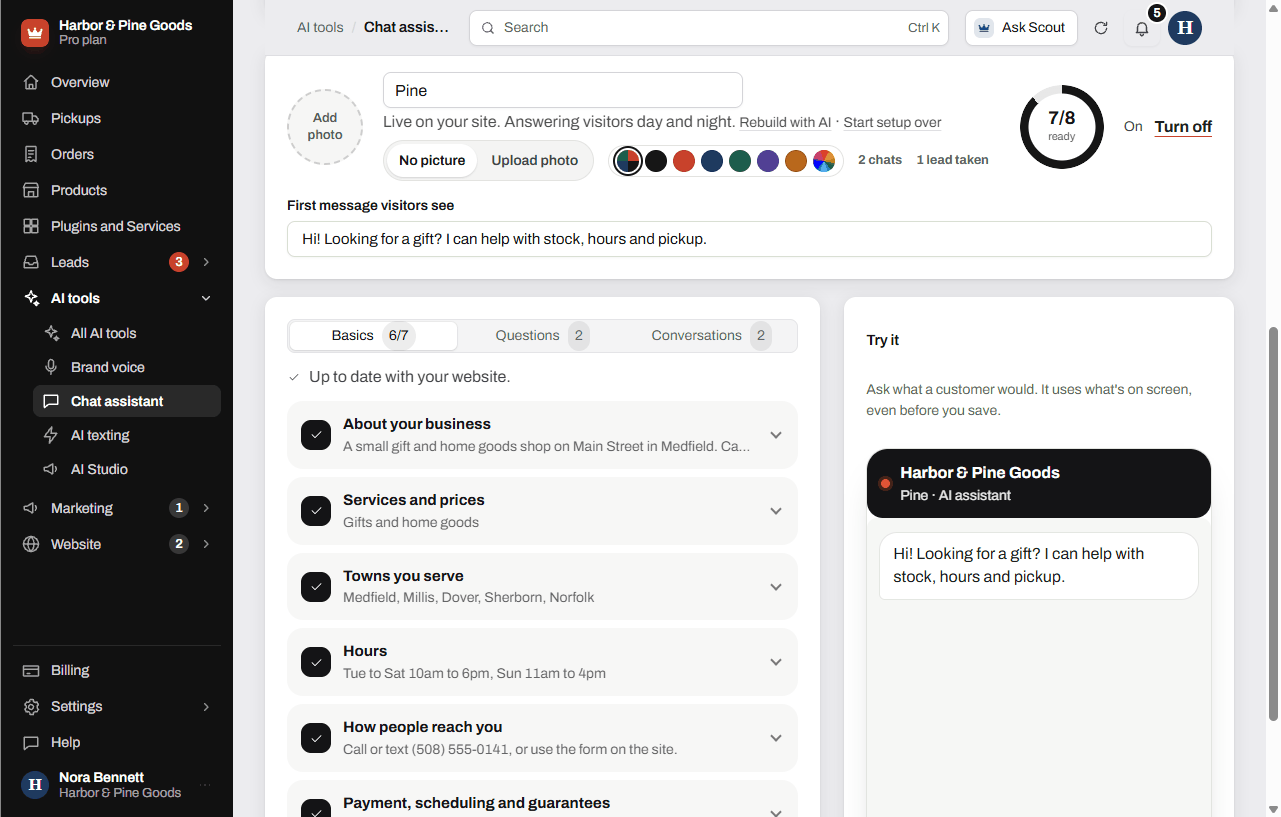
Tell it what it knows
The Basics tab is everything the assistant knows about your business. Click a line to open it and type.
- About your business and Services and prices are needed before it can turn on.
- Towns you serve, Hours, How people reach you and Payment, scheduling and guarantees help it answer more.
- Never say or promise is for anything it should stay away from. It offers a callback instead.
The Questions tab holds the questions customers ask most, with your answers. It starts with the questions already on your website. Click + Add a question to add more, up to 30.
Each time you open the page it checks your website for new questions. Click Check again to look now.
Name, picture and color
Click the name at the top to change it. Pick No picture or Upload photo, and pick a chat color, or Match my website. Type the greeting in First message visitors see. Click Save changes when you're done.
To start fresh, click Rebuild with AI for a new draft, or Start setup over to erase what it knows and begin again.
Read the conversations
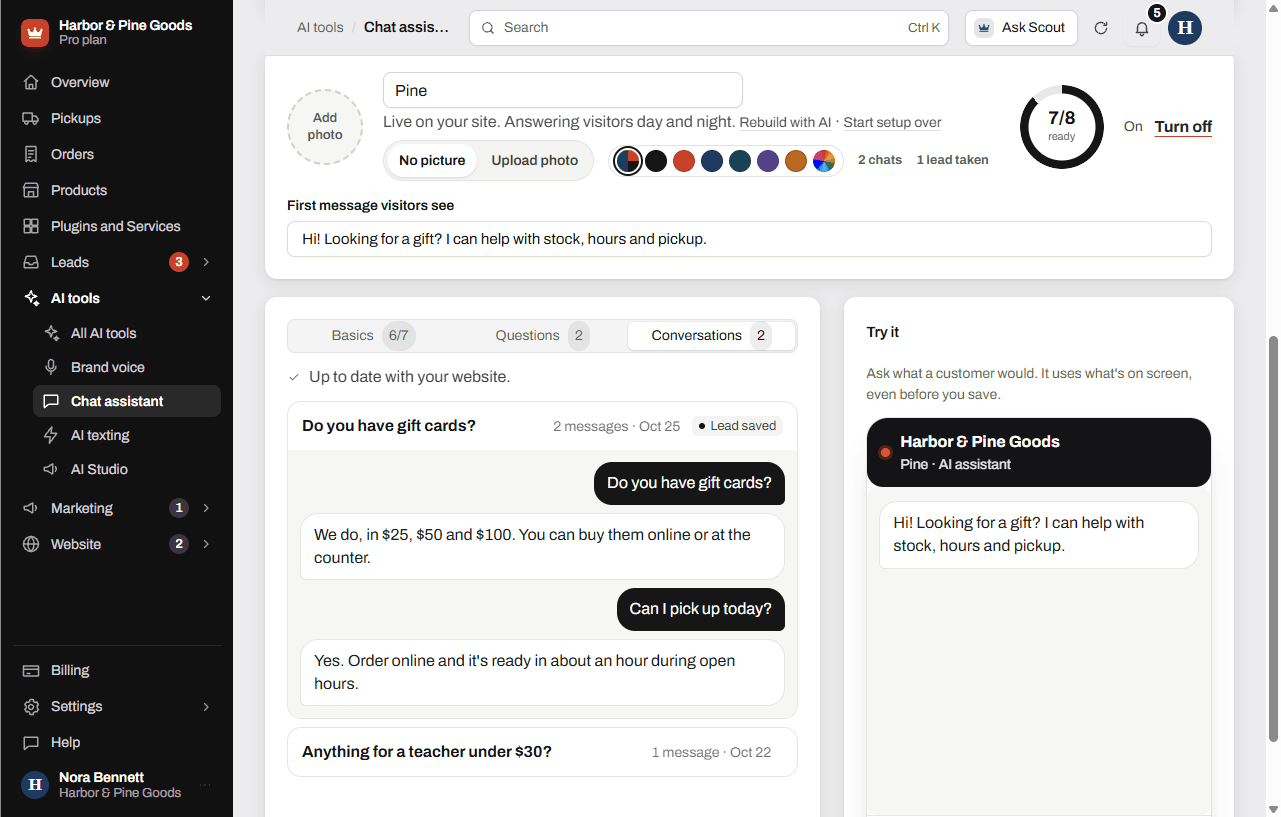
Click the Conversations tab to read every chat on your site, word for word. A chat that took a lead shows Lead saved.
What it costs
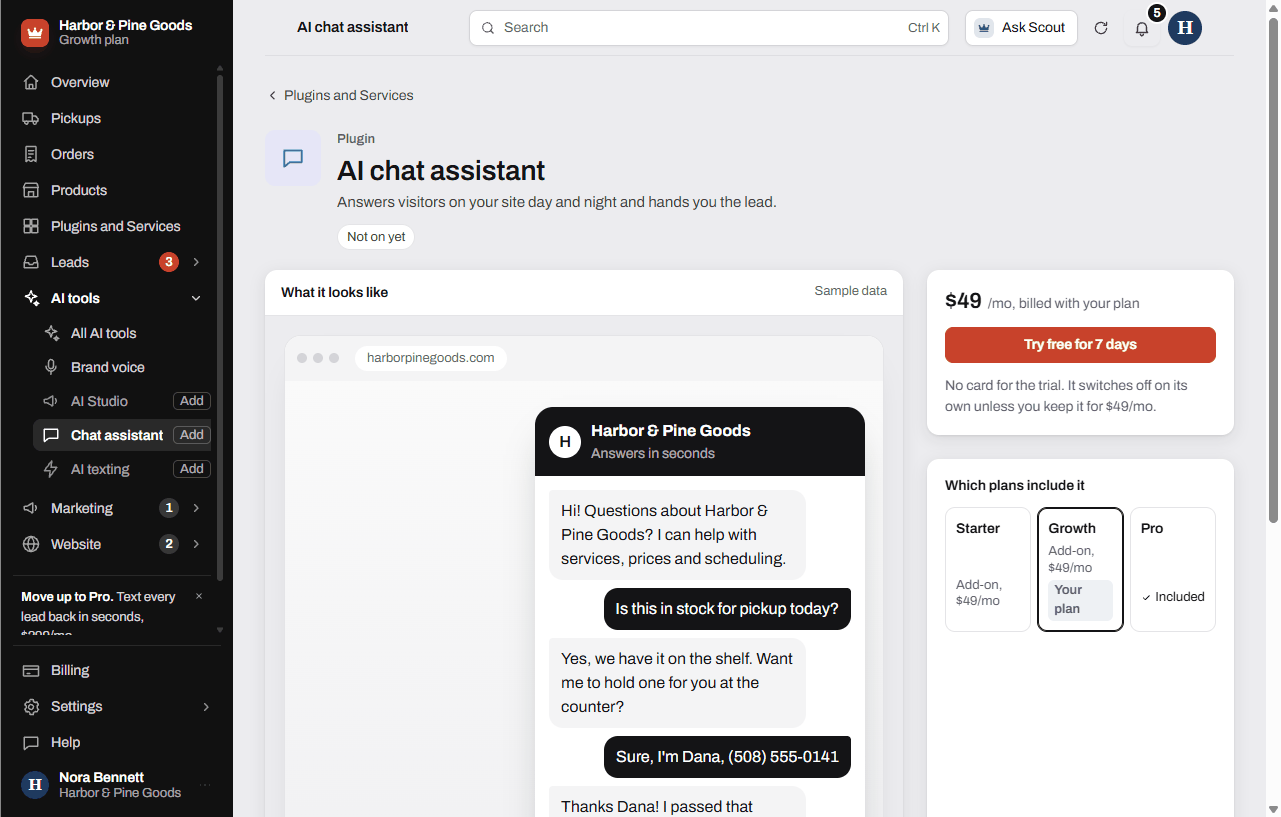
The chat assistant is $49 a month on any plan, and it's included in Pro. You can try it free for 7 days with no card from Plugins and Services. Moving up to Pro takes the $49 add-on off your bill.
Questions
Will it make up prices?
No. It only answers from what you wrote in Basics and Questions. If the answer isn't there, it says it's not sure and offers to have you get back to them.
Can it tell a customer whether a part is in stock?
Not on its own. It doesn't read your product list, only what you write for it. Add a line like "Call the counter to check stock" to Basics, or a question and answer about it.
What happens when someone wants a repair quote?
It asks for their name, the best phone number or email, and a quick note on what they need. Once it has a name and a way to reach them, it saves them as a lead with the whole chat attached.
How will I know it took a lead?
The lead lands with your other leads, and you get the same new-lead email as a form. If Text alerts is on, you get a text too.
Can I read what it said to customers?
Yes. Every chat is in the Conversations tab, word for word.
Can I test it before customers see it?
Yes. The Try it panel uses what's on screen, even before you save. Click Start over in that panel to test again from the top.
Can I stop it from promising a repair date?
Yes. Type it in Never say or promise. It also never guesses dates or availability that you haven't written down.
Does it work at night and on weekends?
Yes. It answers whenever someone visits your site. Put your hours in Hours so it can tell people when you're open.
What does it cost?
$49 a month on any plan, or included in Pro. You can try it free for 7 days with no card.
Can I turn it off for a while?
Yes. Click Turn off at the top of the page. Everything it knows stays saved for when you click Turn it on again.