Plugins
Add and edit products
How to add a product to your online store, with options, prices, stock, photos, collections, bulk edits, spreadsheet import and Google settings.
Updated
Products is where you run your online store: every product, its price, its stock and its photos. Every change you make goes to your site, and to Stripe once Scott has connected your store. Products shows up at the top of your sidebar once your store is running.
Turn on the online store
The online store is a plugin, and it's set up with Scott because checkout runs through your own Stripe account.
- Open Plugins and Services in your sidebar.
- Click the Online store card, then click Start setup.
- Scott reaches out within one business day to connect your Stripe account, load your products and test an order with you.
The card shows Scott is setting it up until checkout is ready. Products appears in your sidebar the moment it is.
Add a product
- Open Products in your sidebar.
- Click Add product at the top right. The product editor opens over the page.
- Under Photos, click Add photos or drop photos onto the box. The first photo is the main one. Type what each photo shows in the Alt text box under it.
- Type the Name and the Price. To show a sale, put the old, higher price in Compare-at price and it shows crossed out.
- Add a Short description and a Full description if you want them.
- Under Collection, click Pick a collection and choose where it belongs.
- Under Stock, type How many you have, or leave it blank if you don't count it. Add the SKU or model number.
- If it comes in sizes, kits or lengths, set them up under Options (see below).
- At the top, set Status to Active when it's ready to sell. A new product starts as Draft, which keeps it off your site.
- Click Done.
You never have to hit save. The editor saves a moment after you stop typing, and the bar at the bottom says Saving, Saved or Couldn't save. Undo in that bar steps back your last change.
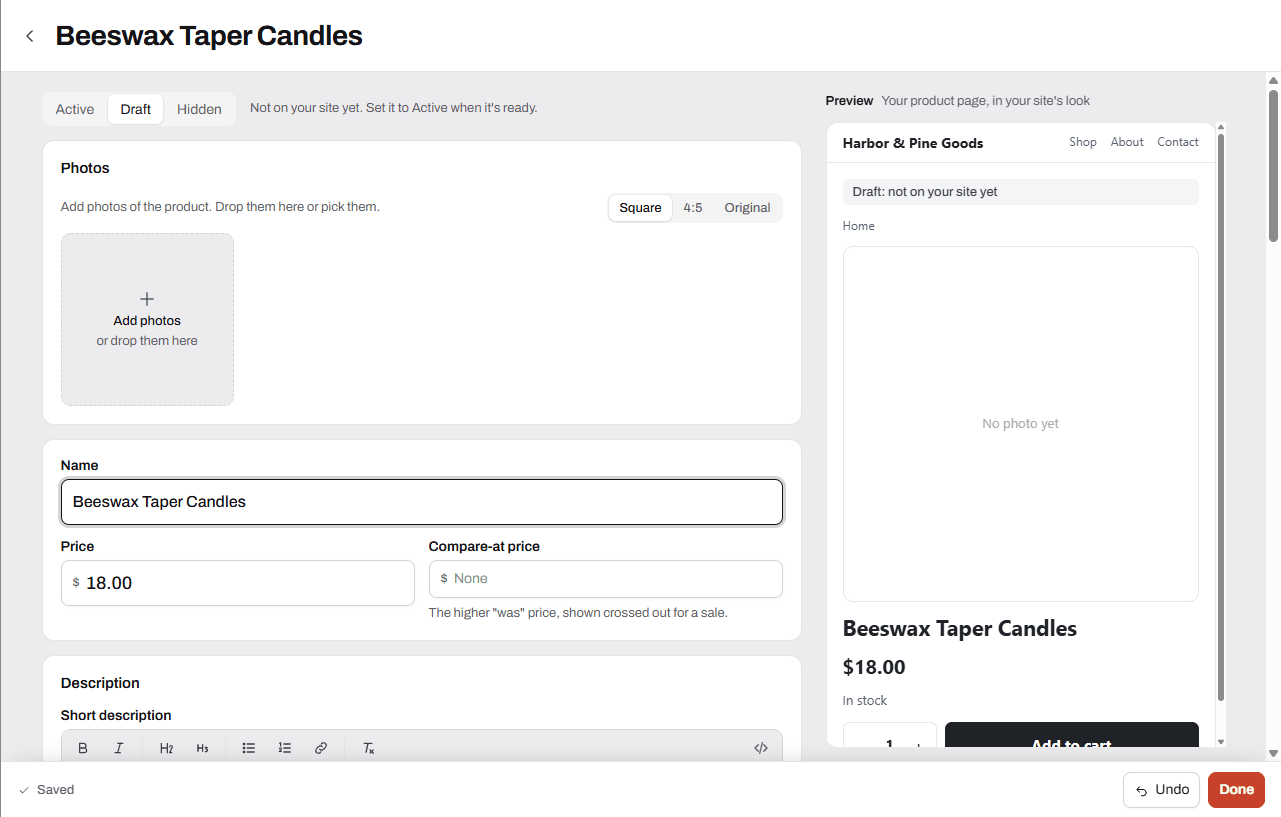
On a computer, the right side of the editor shows a live preview of the product page in your site's own colors and fonts. On a smaller screen, click Preview at the top.
Add a product from your phone
On a phone, Add product opens a quick sheet called Add a product.
- Tap Take a photo, or Or pick one from your photos.
- Type the Name and Price.
- Turn on Show it on my site now to put it live, or leave it off to save it as a draft.
- Tap Add product, or tap Add more details to open the full editor.
Options, like sizes, kits or lengths
Options let one product come in several versions, each with its own price, compare-at price, SKU, photo and stock.
- In the product editor, go to Options.
- Click one of the suggested option names, or click Another name and type your own.
- Type each value and press Enter, like each size or length.
- Each combination becomes a version in the list below. Set the Price and Stock on each one, and click the photo square to pick which photo shows for it.
You can have up to 3 options on one product. To change many versions at once, tick them and use Set price, Set compare-at or Set stock. A version you remove can come back with Put it back.
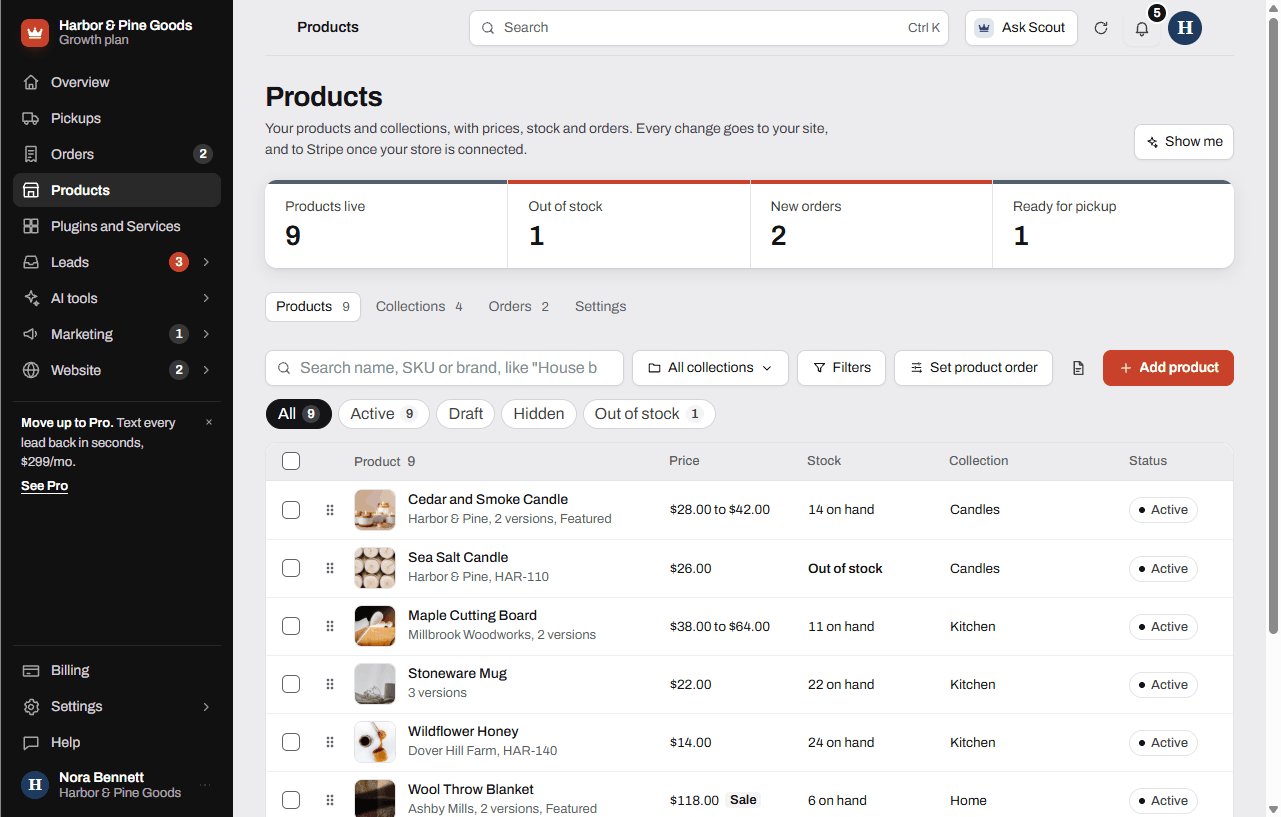
Change price, stock and status right in the list
You don't need to open a product for small changes. In the product list:
- Click a price to change it. Type the new price and press Enter.
- Click the stock to type how many you have, or pick In stock or Out of stock.
- Click the collection to move the product or add it to another one.
- Click the status to pick Active, Draft or Hidden.
Each change shows a Saved mark and an Undo button. Tab moves you across the row.
Collections
Collections are how customers browse your store, like one for each department.
- In Products, click the Collections tab.
- Click Add collection, name it, and click Create collection.
- Open the collection and click Add products to tick the products that belong in it.
You can put a collection inside another one with Add a collection inside. A product can be in more than one collection. The one marked Main is where its page lives.
Change many products at once
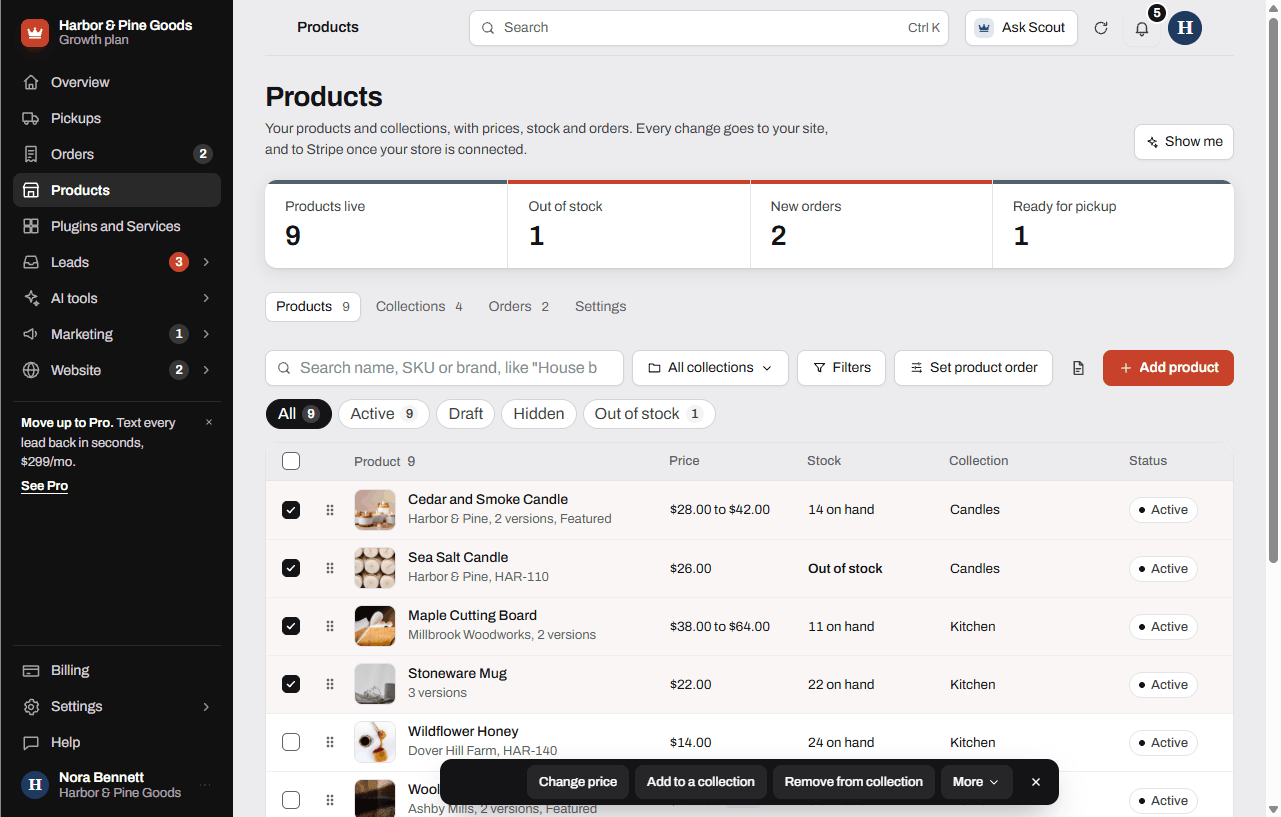
- Tick the box on each product, or use the box at the top to pick everything shown. Search or filter first to narrow the list.
- Use the bar at the bottom: Change price, Add to a collection, Remove from collection, or More.
- More has Move to one collection, Mark in stock, Mark out of stock, Show on site, Set to draft, Hide from site and Search text (SEO).
Change price can raise or lower by a percent or a dollar amount, or set one price, and can end every price in .99. It shows an example before you apply it. Every bulk change has an Undo.
Import or export a spreadsheet
- Click Import and export at the top of the list.
- Pick Download a blank template to get the columns with two example rows, or Export to a spreadsheet to get everything you have now.
- Fill it in, then pick Import a spreadsheet and choose your CSV file.
- Check the dry run. It shows every add, update and error before anything changes.
- Click the Import button, which shows how many changes it will make.
The spreadsheet uses WooCommerce's column layout, so a WooCommerce export imports here. Rows match your existing products by ID, then SKU, then web address, so importing the same file twice changes nothing. Nothing is ever deleted: products missing from the file are left alone. Blank cells leave things as they are.
Search and Google for each product
The Search section in the product editor controls how the product shows on Google.
- The score at the top tells you what to fix next. Suggest with AI writes a focus keyword, a Google title, a description and photo alt text in your brand voice. Nothing changes until you pick Use this.
- Title on Google and Description on Google are what people see in search results.
- Show this page on Google can be switched off for a page you don't want listed.
- Web address is the product's link. If you change it, the old address keeps working and sends people to the new one.
To fill in search text for many products at once, select them and pick More, then Search text (SEO).
Questions
How do I mark a snow blower out of stock?
In the product list, click its stock and type 0, or pick Out of stock. You can also open the product and turn off In stock under Stock. Out of stock shows on your site and stops orders until you add stock again.
Can I sell a chainsaw in different bar lengths at different prices?
Yes. Open the product, go to Options, add an option for the length, and type each length as a value. Each length becomes its own version with its own price, SKU, photo and stock.
How do I put something on sale?
Put the regular price in Compare-at price and the sale price in Price. Your site shows the higher price crossed out. Clear the compare-at price to end the sale.
Does my stock count go down when someone orders online?
Yes, when you count it. A number in How many you have goes down with each order. Leave it blank for things you don't count, and it just shows in stock until you mark it out.
I have hundreds of items in a spreadsheet. Do I type them all in?
No. Use Import and export, then Import a spreadsheet, and you'll see every change before it saves. If you're moving from a WooCommerce or Shopify store, Scott can move it for you as a store migration: $1,500 up to 250 products and $2,500 past that, with your photos included.
Can my products sync with my register?
Not on their own. A register or inventory sync is a service Scott quotes once he sees your system, with a $500 minimum. Request it from Plugins and Services.
How do I raise prices on one brand by 5%?
Search the brand name, tick the box at the top to select everything shown, and click Change price. Pick Raise, By %, type 5, and check the example before you apply it. Undo puts the old prices back.
Some equipment I'd rather price on the phone. Can I hide the price?
Yes. Open the product, go to More, and turn on Call for price. Your site shows a Call button instead of Add to cart.
Can I add a product from my phone on the sales floor?
Yes. Tap Add product on your phone, tap Take a photo, type the name and price, and tap Add product. Tap Add more details when you want the full editor.
What does the online store cost?
The online store is $39 a month on any plan. Scott connects your own Stripe account and sets up checkout with you, and nothing is billed until your store takes orders. Your Stripe fees are yours, and payouts go to your bank on Stripe's schedule.