Plugins
Keep track of customers
How the Customers page builds one record per person from your forms, texts and email list, and how to add notes, follow-ups and tags.
Updated
Customers keeps one record for each person who has reached your business. Everyone who fills out a form on your site, texts you or joins your email list shows up on their own, matched by email or phone number. You add the rest: notes, a follow-up date, tags and what the work is worth.
Find a customer
- Open Customers in your sidebar, under Leads.
- Type in the search box. It looks at names, phone numbers, towns and tags.
- Use the tabs to narrow the list: Everyone, Follow up, or a status like Customer or Repeat.
- Click a row to open that person's record.
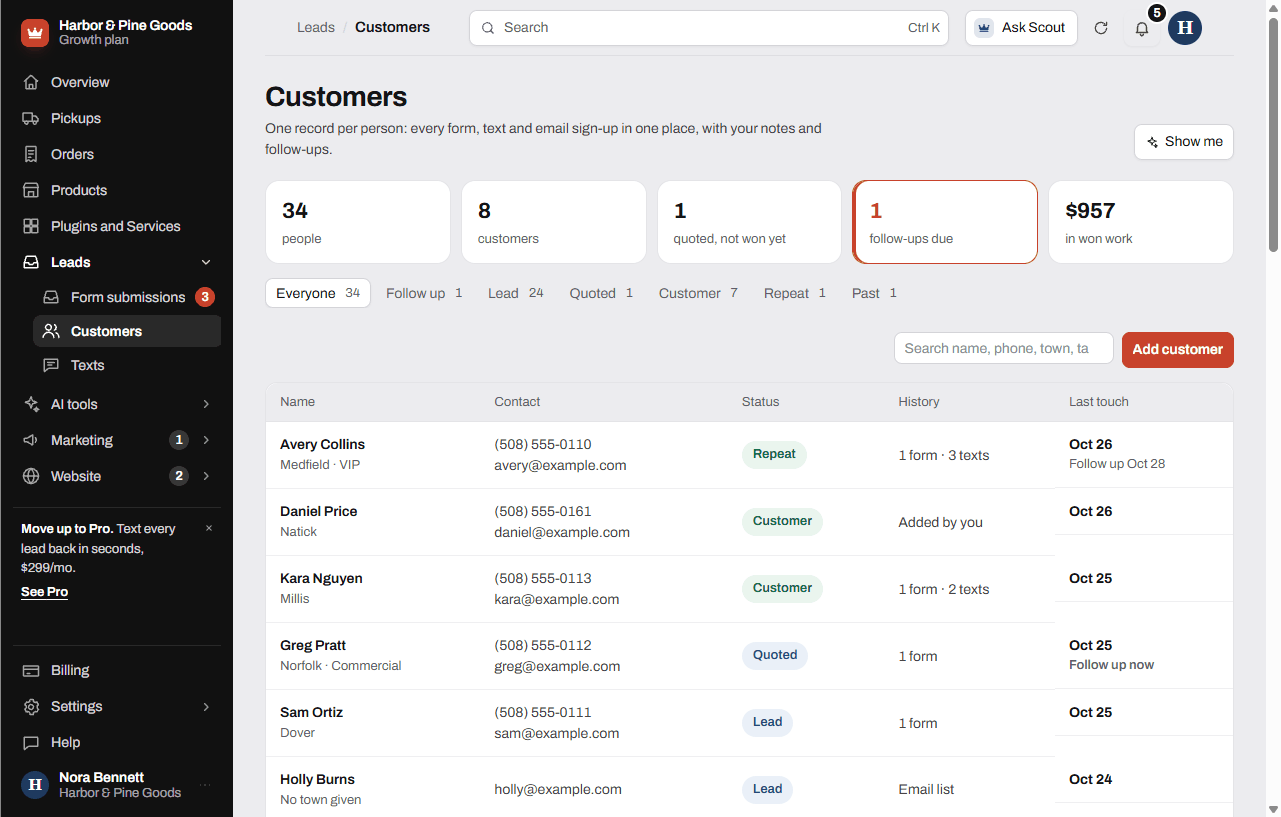
The row shows their contact info, status, history (forms, texts, email list) and the last time you were in touch.
Work a customer record
In the record you can:
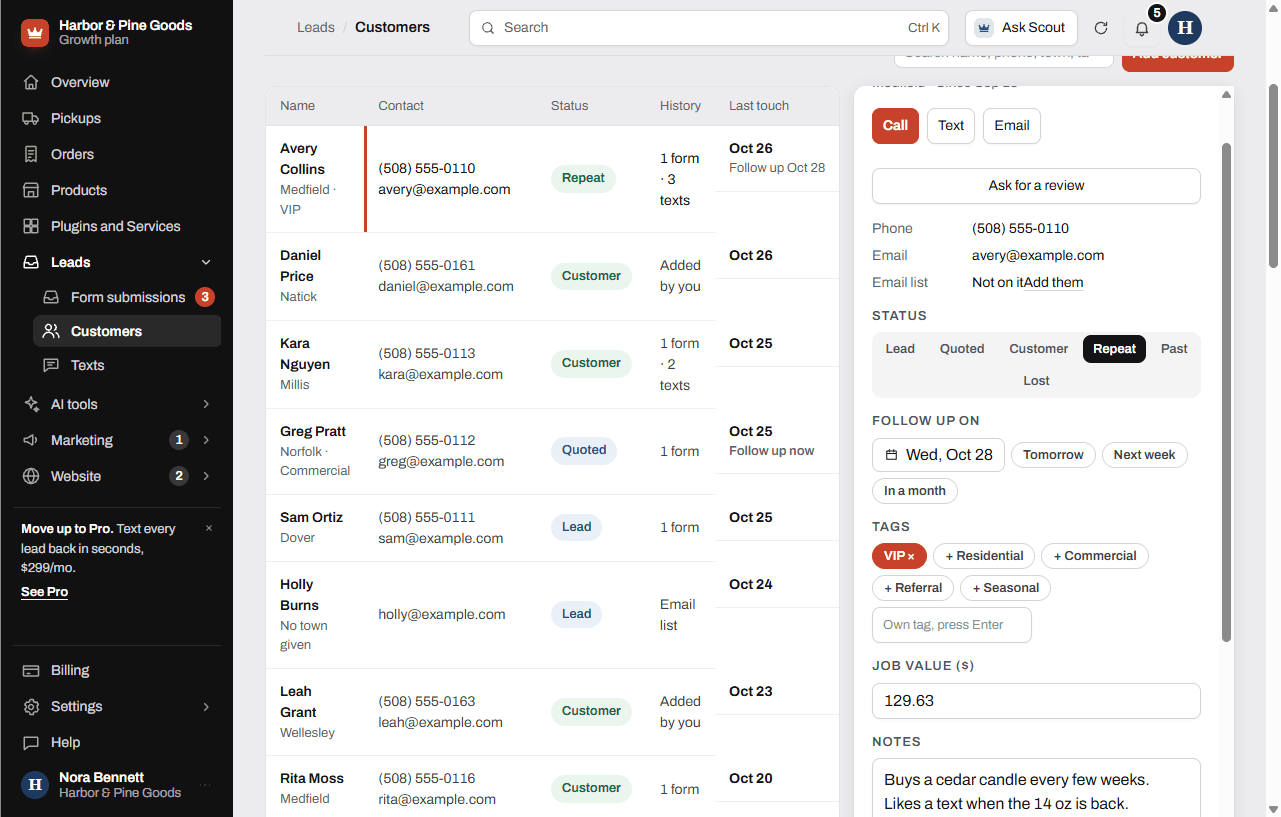
- Tap Call, Text or Email to reach them from your phone or computer.
- Pick a Status: Lead, Quoted, Customer, Repeat, Past or Lost.
- Set Follow up on with a date, or tap Tomorrow, Next week or In a month.
- Add Tags, like Commercial or Seasonal, or type your own and press Enter.
- Type the Job value and Notes.
- Read the History of every form they sent and every text.
Everything saves as you go. Click Close to put the record away.
Add someone by hand
- Click Add customer.
- Type their Name, and a Phone or Email so you can reach them.
- Add a Town, pick a Status and add any Notes.
- Click Save customer.
Use this for anyone who didn't come through your website: a call, a walk-in or a referral.
Questions
Where do my customers come from?
Every form someone sends from your site, every text, and every email list sign-up. Records with the same email or phone number are joined into one person.
Do online store orders show up here?
Not on their own yet. Orders live on your Orders page. To keep a buyer in Customers, click Add customer and add them.
How do I add a walk-in or a phone customer?
Click Add customer, type their name and a phone or email, and click Save customer.
How do I remember to call someone when their part comes in?
Open their record and set Follow up on, or tap Next week. On the day, they show in the Follow up tab and in the follow-ups due count at the top.
Can I note which machine a customer owns?
Yes. Type it in Notes in their record. It saves when you click away, and search finds it.
Can I call or text right from the record?
Yes. Call and Text open your phone's dialer or messages with their number. Calling also marks the last time you were in touch.
Can I ask a customer for a Google review from here?
Yes, when review requests are on for your site. Open their record and click Ask for a review.
What are tags for?
Tags group people the way you think about them, like Commercial, Residential, VIP or Do not contact. Pick a suggested one or type your own. Search finds tags too.
Can I export my customer list?
Not from the Customers page yet. You can export your leads from Form submissions (or Leads) with the Export button.
What does Customers cost?
Nothing extra. Customers is included on every plan once your site is live.